Showing posts with label IP. Show all posts

Friday, February 24, 2012

What is DDNS and Why Do I need it?

DDNS stands for Dynamic Domain Name System.  This is a very-tekkie discussion of DDNS, in more detail than previously presented.
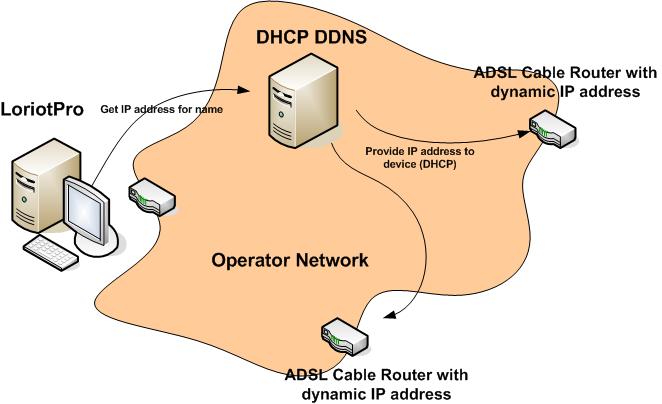


Each website, FTP site, device, and even your cable modem, has an Internet ADDRESS. This address is how the Internet locates nodes, aka computers, or routers, or anything else that might hang on a CAT-V cable [1].

The numbers aren't *too friendly* however. They're hard to remember and for the most part, meaningless as far as their significance. Think about it. If your friend says 

Did you check out my latest pix on 66.220.149.11??

You'll be like HUH? But if they instead say

Did you check out my latest pix on Facebook??

THEN you'll know what they mean right? Well on the INTERNET, FACEBOOK is the domain NAME (at least part of it), and 66.220.149.11 is the Internet address for that name. This might be called the IP Address, or even the WAN address.

So they have to have a system that can TRANSLATE a name into an address,  so when you enter FACEBOOK into your browser, it knows to send you to 66.220.149.11 , and that's what a DNS or Domain Name Server, does. This is called NAT, or Network Address Translation.

So that's a little bit of background for you.  Now what about DYNAMIC DNS (DDNS)?

You actually could get a NAME and a FIXED IP ADDRESS [1] for your camera, and never worry about DDNS. But for most of us, that's impractical. A fixed address is expensive. So instead let's look at DDNS.


Your CABLE or other type of provider temporarily assigns an IP address to you. They own a pool of FIXED UP Addresses, which they dole out to their subscribers on a round-robin or other type of sequence. So when you woke up this morning, your IP address could potentially be different than it was when you went to sleep.

In practice they don't really change that often. If your router hasn't been off line, its possible to have the same IP Address for weeks, or months. In that scenario, you might consider just using the current IP, not worrying about DDNS, and resign yourself to having to adjust it ever month or two. Or six.

But if you want your Camera to automatically be ADJUSTED to use the new IP address, then that's where DDNS shines.

Here is how it works. 

You sign up for a DDNS service. There are dozens. Some are free, some charge $1-2 a month, others more. One caveat- your selections may be limited by your camera or router, read on..

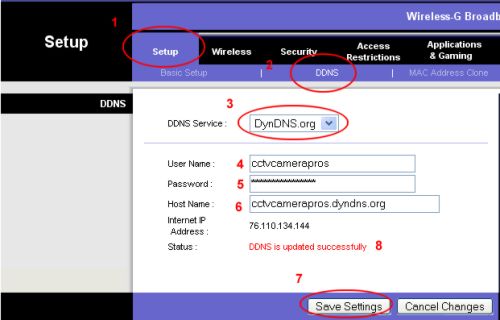
Next, you need to configure one of your devices to *talk to* your DDNS provider. You can locate DDNS settings in your router, camera, and even on some computers.

Then you configure it to tell your DDNS provider about your IP address. When it changes, it tells the DDNS provider, and it adjusts your NAT (Network Address Translation) so someone who types in tammycam.com ALWAYS finds you, even if your address changed.

For details on settings at both the DDNS provider and your router or camera, you'll have to consult the associated guides. They're all different. 

But the part to remember is that many devices can only support CERTAIN DDNS providers. You'll find the list in that guide. Be sure to select one in the list. The other important thing is that you only need ONE device to communicate to the DDNS provider, so you can select it based on which is easiest to configure, which is always-on (like your router), etc.

With lots of study and some trial and error, you can set-and-forget this and never have to worry about it again (hopefully!)..


[1] Most network connections are made with CAT-V cable. The connectors look like really big telephone jacks (remember those?)..

[2] a FIXED IP Address is one that stays the same, and essentially you OWN (or, more often, lease) it. A fixed address is expensive, and for most consumers, not used.

Friday, February 17, 2012

How do I Get my Very own DOMAIN for my IP Camera?

This is an intimidating challenge for many users, particularly those who never had their very own domain. But it might be easier than you think... Or maybe not, depending on how much of a tekkie you are.

The good news is, this stuff is a LOT easier now than it was even 2-3 years ago.

You don't NEED a domain, but they make you *search-able* on the search engines, and the *coolness* factor can't be beat! They are also much easier to remember, and unlike your WAN IP address, they don't change. Think about it- if you tell your BFF:

hey check out my new camera on my dog fido at http://43.54.122.34:2033 .. 

You can imagine how long your BFF will remember that! But what if you said:

hey check out my new camera on fido! Its at fido.timmycam.com

Well THAT might get remembered, right?


There are 3 basic steps to obtain a domain and configure your camera to be on it:


First, Obtain your domain name. To do this, get an account at a domain provider's site, choose the name, and snag it. I use GO DADDY for for my domains; they have great prices, and awesome service, and lots of eye-candy! You can get a domain for a year for under $5, some under $1!

Choose your name carefully- Be CLEVER so you get something people will remember! Like danacam.com (if you happen to be named Dana, otherwise this may not make sense), or chicagocams.com (this may be taken) and so on. .us and other domain types are often on-sale. As I write this, .us domains are only $3.99 for year 1.


Next, set up DDNS (DYNAMIC DNS). This is the way you associate your (changing) WAN IP address with your domain and port.

If you want to find out what your WAN IP is, use this site. It may not work properly in some cases depending on your browser REFERER settings, but it seems pretty good in general.

There are MANY DDNS Providers, but unfortunately, not all cameras/routers cooperate with all DDNS providers.  Here is a list of providers.

To make this work, you must have ONE device on your LAN that can communicate with the DDNS provider. TZO or DYNDNS are providers commonly supported by many cameras [1] (particularly LINKSYS/CISCO), but it's about $2 a month to use their service. A FREE provider, and the one I use, is afraid.org , which is FREE! FREE is good. You can get detailed set up instructions on these sites.


Finally, you need to configure your router or camera to exchange information with the DDNS provider. You only need to configure ONE device- one camera, or one router, etc.  But it needs to be a device that is always on.  Go into the ADMIN page for the device, and select the DDNS option, and enter your information. If you use a PAID service, they may assist you if you get confused.


OK that's done, let's go live. We'll use ports to do this.

What are PORTS? Well, PORTS can be YOUR FRIEND! PORTS are used to route requests to each of your cameras. Its like your WAN is the switchboard phone number, and ports are the phone extensions.

Let's take a look..

Say you have 4 IP cameras, and you own the domain ilovecams.com. How can you access FOUR cameras, with one domain? Simple - with PORTS! Here is what you can do..

Set up camera one on port 2001, two on 2002, three on 2003, and four on 2004. To do this, simply go into EACH camera's admin page, and enter the port on the network config page. Almost all IP cameras will allow you to do this.

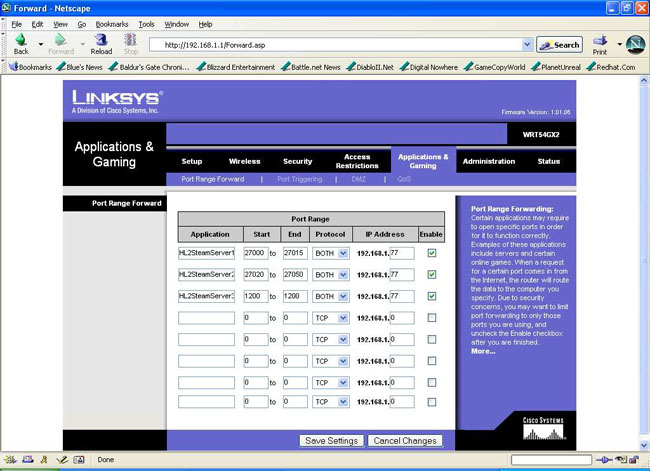
Next, back to your router's admin page, you will set up PORT FORWARDING, associating camera 1's FIXED IP address with port 2001, camera two with 2002, and so on. It sounds hard, but it's not. Sometimes this function is sort of disguised under GAMES/APS, or some other tab.

Now you can access each camera using ports. For example you can view camera 3 using

http://ilovecams.com:2003

BUT we can make this even better! Go Daddy, and/or your DDNS provider, may allow yuo to do DOMAIN or SUBDOMAIN forwarding! Which is very cool.. 

So instead of remembering port numbers, you can redirect subdomains. For example, say camera 1 is on a birdcage, and camera 2 is on your front door. Well, go to GODADDY and using subdomain redirect (you can have up to 99 subdomains):

birdy.ilovecams.com directed to ilovecams.com:2001
frontdoor.ilovecams.com directed to ilovecams.com:2002

Isn't that a lot easier to remember? Now when you visit http://birdy.ilovecams.com , all of the numbers and gobbledygook are hidden- up pops your birdy cam!


One thing to be aware of- not all of these changes are active immediately. GODADDY changes can take hours (to update servers worldwide), so you may not see results right away. GODADDY has excellent support if you need assistance.


Have FUN with domains - grab a clever one and be an internet star!


[1] - actually this is a sore-spot among many tekkies, who oppose locking a router or camera to certain DDNS providers, instead of opening up the device to ANY and ALL. Oddly, some routers/cameras actually lock their device to only PAID providers. Some camera sellers offer their OWN DDNS service, free, but it is often in Asia so the ping times may not be stellar/

Thursday, February 16, 2012

Who can VIEW My IP Camera, and from Where?

"What really sets IP Cameras apart is the ability to view them from anywhere."

With a few fairly simple actions, an IP camera can be configured to view from your smart phone, or any browser worldwide. Sounds amazing?  It is!

Our friends and family  get a great sense of security and virtual presence at home as we view our 4-5 cameras showing us every door, and the interior.  I can pan/tilt my outdoor cameras to see pretty my my entire yard, the street, and even adjacent buildings.


We can check on our home and pets while travelling, out on the water,  at work, whenever and wherever we are (except perhaps when SCUBA diving!)..

Is this secure? It sure is. Modern IP cameras have built-in security- the usual assortment of WEP, WPA, WPA2, etc.

And using the camera interface, you can force users to enter a username and password to view any images. In fact many PTZ cameras offer multi-level access, where you can allow users to view, view and MOVE the camera, or administrate- your choice.

The steps are easy:
  1.  choose a PORT to use as your broadcast port. It needs to be > 1024, and unused.
  2. set up your camera on your LAN. You'll want to set it up with a FIXED IP address (don't select DNS). Normally this address would be 192.168.1.XXX where XXX>128. Check your router status for unused ports.
  3. In the same camera admin network page, and set it up to broadcast on the SAME port you selected.
  4. Next, go into your router admin page, and find the page to set port forwarding. Then add the port you selected, and point it at the IP address you chose for your camera.
  5. Repeat 1-4 once for each camera you have, each time selecting unique IP's and ports.

and Bingo- you're WORLDWIDE! You can access your cameras anywhere using the IP Addreses from your provider. You can determine THAT by checking your router WAN status or at a number of websites like this one.

Say your provider set you up on 46.43.66.55 (which you found in your router status, or from a WAN IP website). And you chose port 2222 for your camera. Just point your browser at 46.43.66.55:2222 and there is your camera! From anywhere.

You can ALSO view it from inside your LAN, using the local FIXED ip for the camera, and the port, such as 192.168.1.203:2022

But that ONLY works from inside your LAN. The WAN address works from anywhere on the internet.

For smartphones there may be another step, where you set up the MEDIA PORT to point at another port, say 557. In this case, select an unused port between 500 and 600, and add that to port forwarding too (step 4). This step may not be necessary, but certain apos may require it. I recommend IP CAM BASIC as the ap to use for your IP camera viewing from your Android.

Say you want a REAL web-page- not a number? I tell you how to do that in another post, where in a matter of minutes you can set up your camera with a name you select, for example:

http://frontyard.mycoolcam.com

Having fun yet?