DDNS stands for Dynamic Domain Name System. This is a very-tekkie discussion of DDNS, in more detail than previously presented.
Each website, FTP site, device, and even your cable modem, has an Internet ADDRESS. This address is how the Internet locates nodes, aka computers, or routers, or anything else that might hang on a CAT-V cable [1].
The numbers aren't *too friendly* however. They're hard to remember and for the most part, meaningless as far as their significance. Think about it. If your friend says
Did you check out my latest pix on 66.220.149.11??
You'll be like HUH? But if they instead say
Did you check out my latest pix on Facebook??
THEN you'll know what they mean right? Well on the INTERNET, FACEBOOK is the domain NAME (at least part of it), and 66.220.149.11 is the Internet address for that name. This might be called the IP Address, or even the WAN address.
So they have to have a system that can TRANSLATE a name into an address, so when you enter FACEBOOK into your browser, it knows to send you to 66.220.149.11 , and that's what a DNS or Domain Name Server, does. This is called NAT, or Network Address Translation.
So that's a little bit of background for you. Now what about DYNAMIC DNS (DDNS)?
You actually could get a NAME and a FIXED IP ADDRESS [1] for your camera, and never worry about DDNS. But for most of us, that's impractical. A fixed address is expensive. So instead let's look at DDNS.

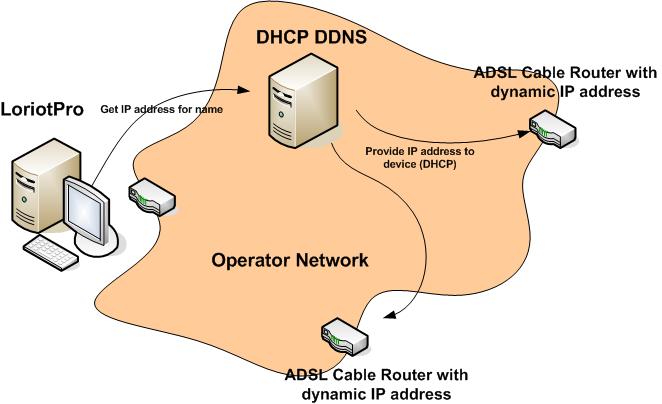
Your CABLE or other type of provider temporarily assigns an IP address to you. They own a pool of FIXED UP Addresses, which they dole out to their subscribers on a round-robin or other type of sequence. So when you woke up this morning, your IP address could potentially be different than it was when you went to sleep.
In practice they don't really change that often. If your router hasn't been off line, its possible to have the same IP Address for weeks, or months. In that scenario, you might consider just using the current IP, not worrying about DDNS, and resign yourself to having to adjust it ever month or two. Or six.
But if you want your Camera to automatically be ADJUSTED to use the new IP address, then that's where DDNS shines.
Here is how it works.
You sign up for a DDNS service. There are dozens. Some are free, some charge $1-2 a month, others more. One caveat- your selections may be limited by your camera or router, read on..
Next, you need to configure one of your devices to *talk to* your DDNS provider. You can locate DDNS settings in your router, camera, and even on some computers.
Then you configure it to tell your DDNS provider about your IP address. When it changes, it tells the DDNS provider, and it adjusts your NAT (Network Address Translation) so someone who types in tammycam.com ALWAYS finds you, even if your address changed.
For details on settings at both the DDNS provider and your router or camera, you'll have to consult the associated guides. They're all different.
But the part to remember is that many devices can only support CERTAIN DDNS providers. You'll find the list in that guide. Be sure to select one in the list. The other important thing is that you only need ONE device to communicate to the DDNS provider, so you can select it based on which is easiest to configure, which is always-on (like your router), etc.
With lots of study and some trial and error, you can set-and-forget this and never have to worry about it again (hopefully!)..

[1] Most network connections are made with CAT-V cable. The connectors look like really big telephone jacks (remember those?)..
[2] a FIXED IP Address is one that stays the same, and essentially you OWN (or, more often, lease) it. A fixed address is expensive, and for most consumers, not used.